
The Room Setup tool
The whole room,
in one canvas.
Bring the room, speakers, seating and screen together. Every change updates the same model, views and drawing set.
Panels Everything on the left-hand rail of the tool
01 — Geometry and fabric
Model the room
you were given.
Width, length and ceiling height are where it starts, not where it ends. The panels below the fold are the ones that decide whether a speaker actually fits.
- Doors and windows placed on any wall, with offset from corner, height from floor and depth into the wall.
- Floor plinths and steps as rectangles or steps, with projection from the wall and height — put the back row on a riser and it lifts with it.
- Box-outs and columns with projection into the room, so the surround that will not fit shows up now, not on site.
- Skirting, cornice and coffer heights that carry through to every elevation.
- Ceiling and wall systems brought in as GLB from Space Frame and Wall Designer — designed once, placed here.
- Import an existing model — drop in a GLB, confirm the imported dimensions, or replace it later without losing the layout.

02 — Speakers, subs and dispersion
Every channel
aimed, and the
proof to show it.
This is the part clients argue with and the part installers rely on. Room Setup draws the beam and the SPL from each channel across the seating, so a position is a decision you can explain rather than a guess you defend.
- Stereo, soundbar, LCR, surround and immersive — stereo and soundbar with up to six surrounds, then 5.1.x, 7.1.x and 9.1.x beds with a 2, 4 or 6 channel height layer.
- A real preset catalogue — brand and model presets carrying true cabinet dimensions and front-elevation artwork, in-wall, on-wall, in-ceiling and round Atmos bodies.
- Per-channel aim and tilt, rotation, speaker height, distance from wall, and a reset that puts everything back where the format says it should be.
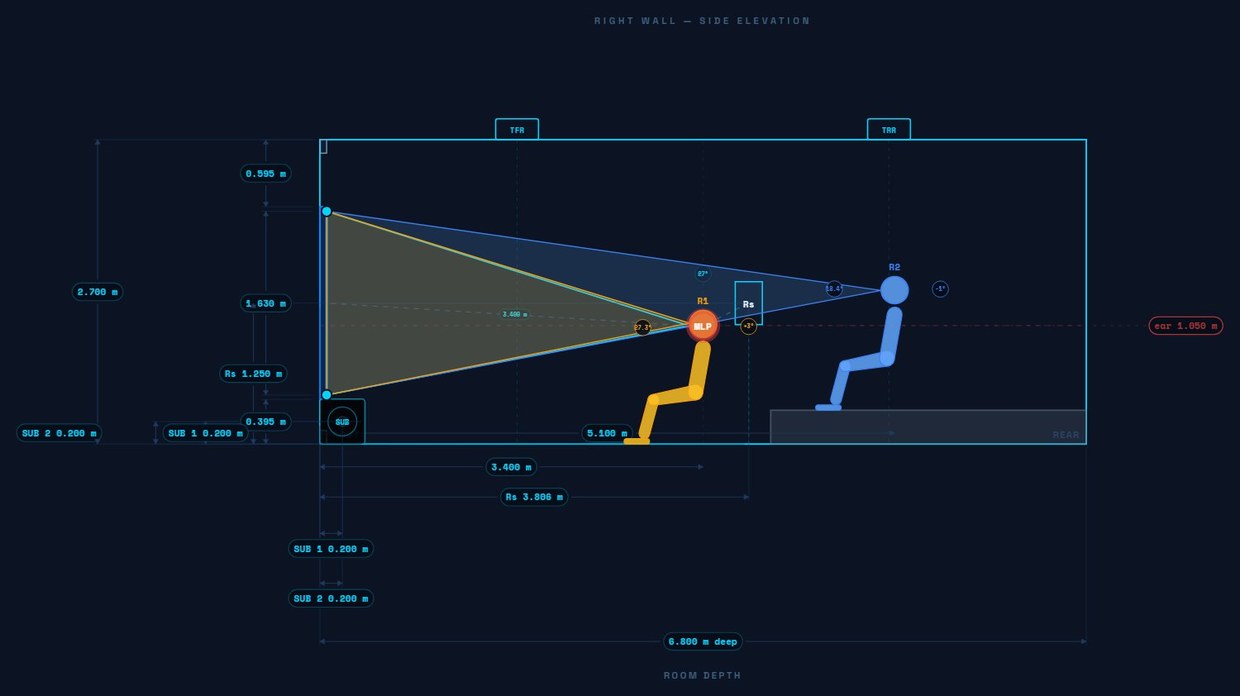
- Dispersion cones with beam and SPL, faint across the room and boosted on the channel you are hovering, plus exclusion zones and a listening zone overlay.
- Subwoofers on any format — including stereo and soundbar — with height above floor and placement worked against the room.
- Save your own presets to your account once and pull the same cabinet into every job after it.

03 — Seating, tiers and sightlines
Move a seat,
move the room.
Seating is not decoration in this tool — it is the reference everything else is measured from. Change a row and the distances, angles and elevation all follow.
- Rows, seats and spacing — number of rows, seats per row, seat spacing, row spacing and the distance from row one to the screen.
- Rows sit on the riser you drew. Put a plinth across the back of the room and the row standing on it lifts automatically — no separate tier height to keep in step.
- Seated ear height, recline and lift, with real seated figures in the 3D view so the sightline you see is the one the client will have.
- Main listening position set by distance and left/right offset, with row one able to snap to it — and MLP distance and angle read back from the cabinet position.
- Chairs or stools, so bar seating at the back is drawn as bar seating.
04 — Screen, projection and acoustics
The picture and
the physics, in
the same room.
Screen choice and room modes are usually two different conversations in two different files. Here they are two panels on the same model, checked against the same seating.
- Screen or TV — screen type, model, aspect ratio, TV size in inches, image width, centre height and projection from the wall.
- Masking states drawn as they will be seen — closed at 16:9 or open at 2.40:1 — with a portrait TV auto-rotating unless you override it.
- Projector throw from a projector catalogue, sized against the room you have actually drawn.
- Room modes calculated from the finished dimensions, with speed of sound and max order you set, and the frequencies shown against the layout.
- Metric or imperial throughout, chosen per user and remembered across every tool in the suite.

05 — Views, export and issue
What comes out
the other end.
A room is only worth modelling if someone can build from it. Every view and every file below is generated from the one project, so nothing can be out of date relative to anything else.
The rest of the suite
Room Setup is the
centre, not the whole.
Each of these feeds the same canonical room. Design once, hand it across, and carry on.
Room Creator
Trace a PDF or image floor plan, auto-detect walls and openings, set scale from a known dimension — or import a GLB and label the meshes.
Screen Setup
Screen, viewing geometry and projector worked out before the room exists, then carried in when it does.
Space Frame
Acoustic frames and clouds with a batten schedule against stock lengths, and a GLB that drops back into the room.
Wall Designer
Design a wall's panel layout on its own, then link the project into Room Setup so the finished wall shows up in the room and its elevations.
Output
Drawings and schedules issued from a saved room, through the document-issue review step.
Your next room starts here
Get an account.
Create your account, verify your email, and we’ll help you get set up with the tools you need.
Already have an account? Sign in